
Audit log
What audit logs are for, where to find them, and how to read entries in the Security pages.
Audit logs help you answer “who did what, and when?” for your workspace and your own account. They are not a full web server access log — they record defined security and product actions, plus successful public API calls that change account or team configuration.
| Team audit log | Personal audit log | |
|---|---|---|
| Scope | Activity on the current team | Your user account only |
| Location | Team → Security | Account → Security (profile menu) |
| Viewers | Owner and Admin only | You, when signed in |
| Examples | Invites, API keys, notifications, billing | Sign-in, MFA, password, email |
Members cannot open the team audit log. See Team roles and permissions.
For a short description of every action label you might see, use the audit log events knowledge base article.
Use the table filter to search by action name. Pagination shows five rows per page by default.
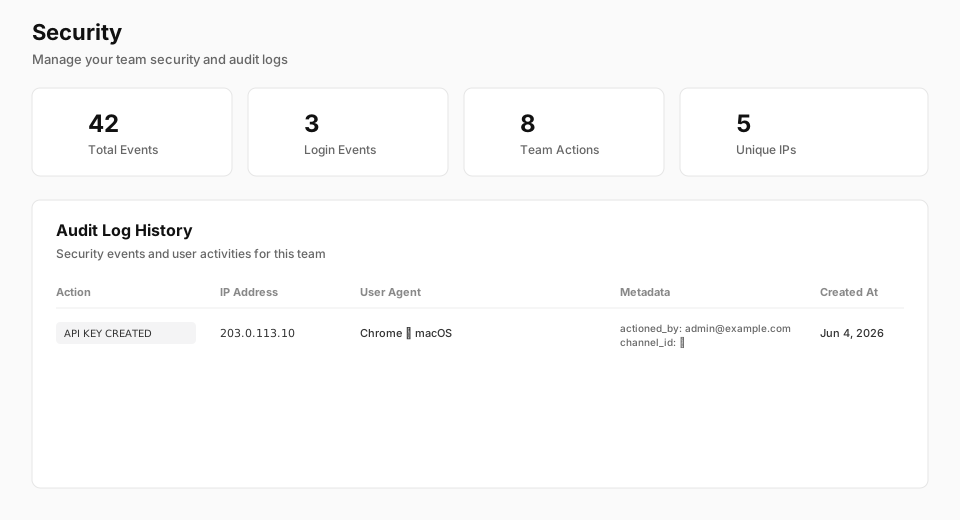
Summary cards count total rows, team-creation-related rows, member-invite-related rows, and distinct IP addresses. Treat them as quick context, not a full analytics dashboard.
/user/security).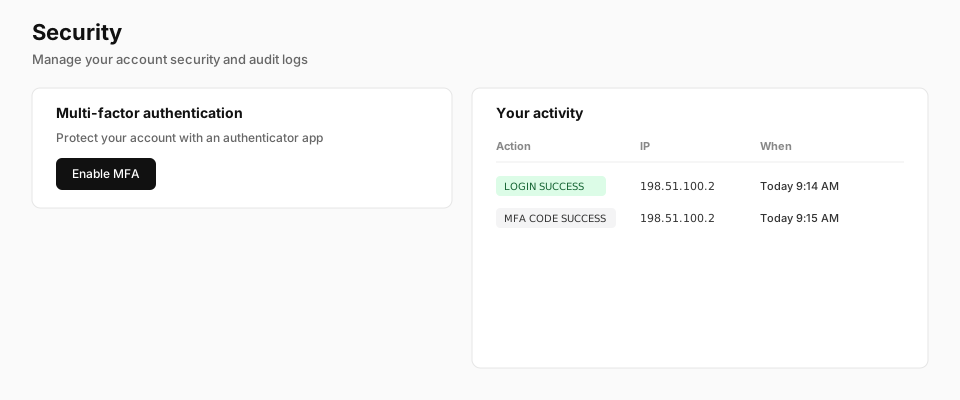
| Column | What it tells you |
|---|---|
| Action | The event type. The UI shows spaces instead of underscores (for example TEAM MEMBER INVITED). |
| IP Address | Client IP when the event was recorded. |
| User Agent | Browser or client summary. Click the cell for full browser, OS, and device details. |
| Metadata | Extra fields such as actioned_by, resource IDs, or API route details. |
| Created At | Timestamp in your local timezone. |
Actions that include FAILED in the name often appear with error-style badge coloring.
Most team events include actioned_by (email of the signed-in user) and user_id. Notification and API key events include resource IDs such as channel_id or api_key_id. API REQUEST rows include method, path, status, and sometimes api_key_id.
Only successful mutating /api/v1 responses (for example invite, remove member, update team) create API REQUEST rows. Read-only API key traffic such as GET requests is not listed. Failed API calls are also omitted.
Team audit history length depends on your subscription (audit_retention_days). When retention is reached, older team rows are removed automatically.
There is no in-app export today. Contact support if you need bulk export for compliance.