
EmailGuard
  • Pricing
Log inRegister
DocumentationAPI ReferenceKnowledge Base

Documentation

Documentation

Help center guides

Getting started
  • Introduction
  • Getting started in the app
  • Sign-in and account recovery
Teams
  • Creating and switching teams
  • Team settings
  • Inviting and managing members
  • Accepting team invitations
  • Understanding roles
Account
  • Managing your account
  • Securing your account
Billing
  • Billing plans and subscription
  • Billing usage
Notifications
  • Notification rules
  • Notification channels
Security
  • Audit log
Developers
  • Creating API keys
  • Your first email detection check
  • Integrating from the dashboard

Inviting and managing members

Invite teammates, change roles, revoke invites, and remove members from a shared team.

Loading article…

On this page

  • Invite a member
  • Pending invites
  • Change a role or remove someone
  • Related articles

Shared (non-personal) teams manage people from Team → Members. Personal teams do not show this page.

You need Owner or Admin permissions to invite people, change roles, or remove members. See Team roles and permissions for the full matrix.
Invite a member

  1. Select the shared team in the switcher.
  2. Go to Team → Members.
  3. Choose Invite member.
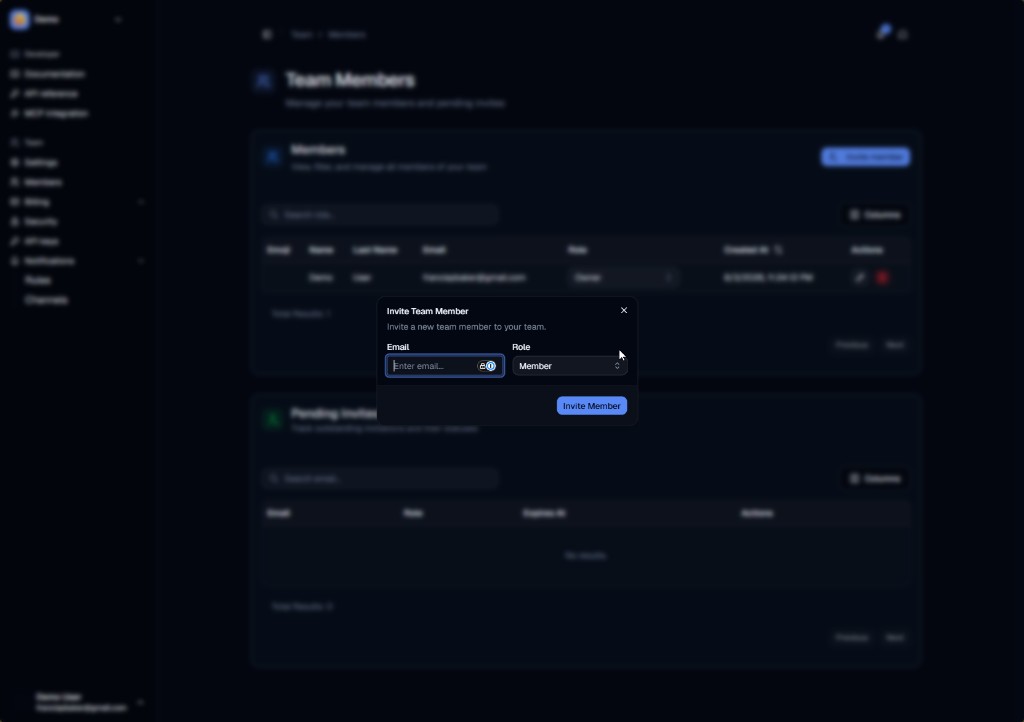
  4. In the Invite Team Member dialog, enter their email and choose a role (Owner, Admin, Member, or Billing).
  5. Choose Invite Member.

Invite Team Member dialog with email and role fields

The Members table lists people already on the team (email, name, role, and actions). Pending invites appear in Pending invitations until accepted or revoked.

Pending invites

From the pending invitations table you can:

  • See who was invited and which role they will receive
  • See when the invite expires
  • Revoke an invite that should no longer be used

Invitees accept from Profile → Teams — see Accepting team invitations.

Change a role or remove someone

  1. Find the person in the members table.
  2. Use the row actions to update their role, or remove them from the team.

Removing someone ends their dashboard access to that team. API keys belonging to the team keep working until you revoke them — keys are not tied to a single human user.

Related articles

  • Understanding roles
  • Accepting team invitations
  • Team roles and permissions