EmailGuard
  • Pricing
Log inRegister
DocumentationAPI ReferenceKnowledge Base

Documentation

Documentation

Help center guides

Getting started
  • Introduction
  • Getting started in the app
  • Sign-in and account recovery
Teams
  • Creating and switching teams
  • Team settings
  • Inviting and managing members
  • Accepting team invitations
  • Understanding roles
Account
  • Managing your account
  • Securing your account
Billing
  • Billing plans and subscription
  • Billing usage
Notifications
  • Notification rules
  • Notification channels
Security
  • Audit log
Developers
  • Creating API keys
  • Your first email detection check
  • Integrating from the dashboard

Securing your account

Enable MFA, manage active sessions, and review your personal security audit log.

Loading article…

On this page

  • Multi-factor authentication (MFA)
    • Enable MFA
    • Disable MFA
  • Active sessions
  • Personal audit log
  • Related articles

Open your profile menu (bottom of the sidebar) → Security, or go to /user/security. This page covers multi-factor authentication, sessions, and your personal audit history.

Team-level “who did what” lives under Team → Security — see Audit log.
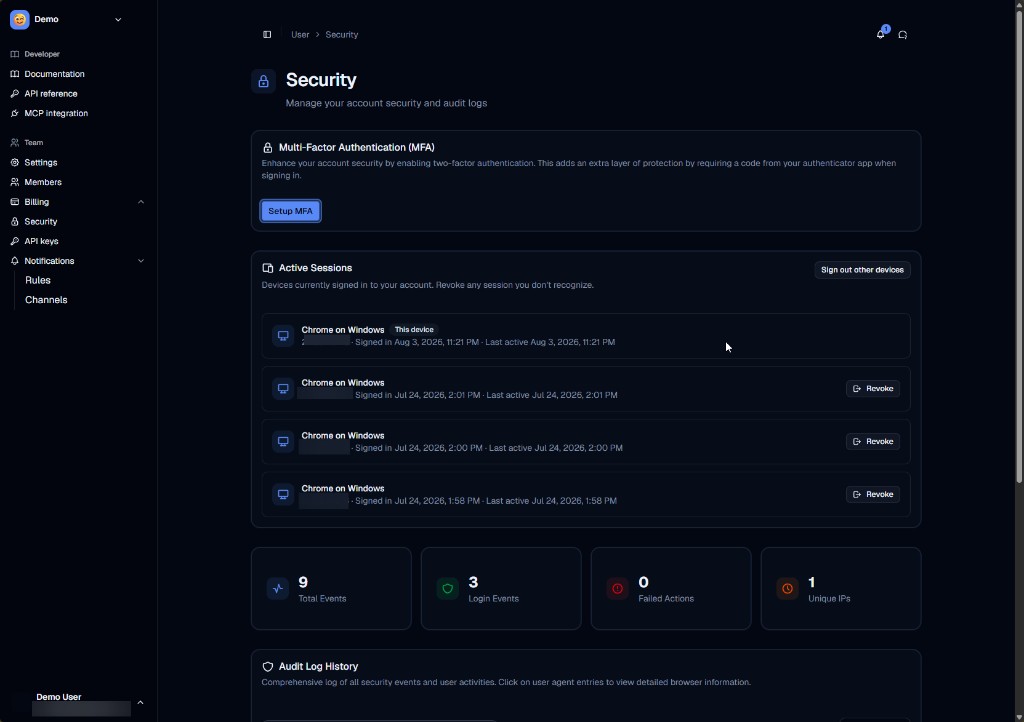
User Security page with MFA setup, active sessions, and audit summary

Multi-factor authentication (MFA)

Enable MFA

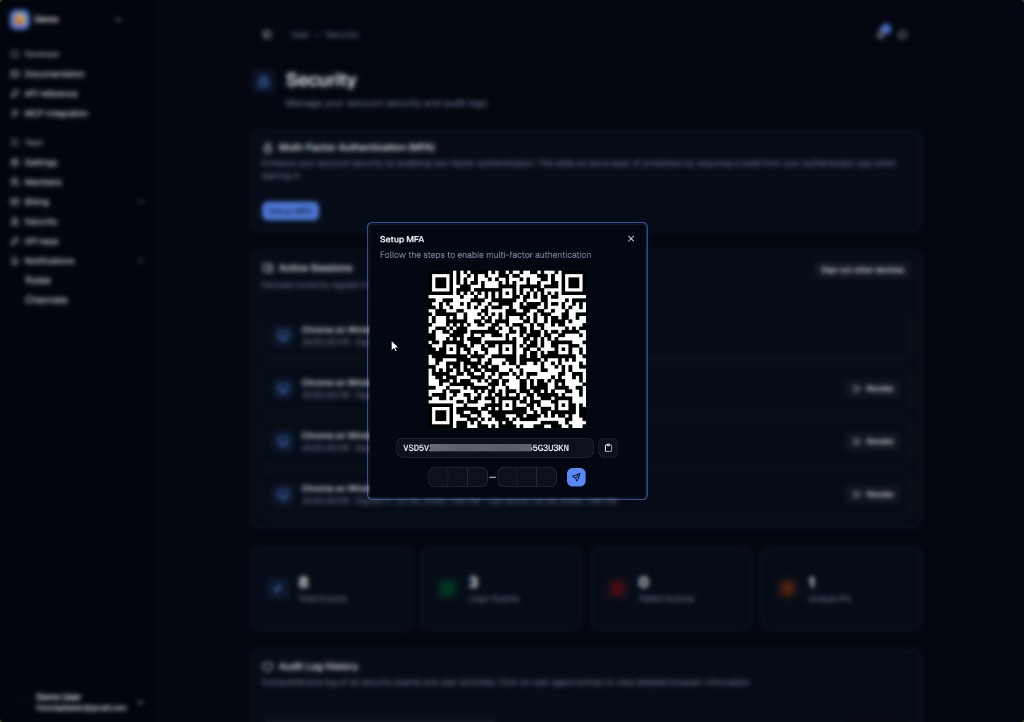
  1. Under Multi-Factor Authentication (MFA), choose Setup MFA.
  2. In the Setup MFA dialog, scan the QR code with an authenticator app, or copy the secret and enter it manually.
  3. Enter the 6-digit verification code from your app and submit.
  4. Store any recovery codes the product shows afterward offline — they are shown once.

Setup MFA dialog with QR code, secret, and verification code

On the next sign-in, EmailGuard will ask for an authenticator code (or a recovery code).

Disable MFA

Disable from the same page when you can still pass an MFA challenge. If you lose both your authenticator and recovery codes, contact support — the product cannot invent new codes for you from this guide.

Active sessions

The Active Sessions card lists devices and browsers that currently hold a valid session (browser/OS, signed-in time, last active).

  • Choose Revoke on any session you do not recognize.
  • Use Sign out other devices to end every session except the current one.

Personal audit log

Below MFA and sessions, summary cards (total events, login events, failed actions, unique IPs) and Audit Log History list account-level events.

For action name meanings, see Audit log events. For how to read columns on the team log, see Audit log.

Related articles

  • Managing your account
  • Sign-in and account recovery
  • Audit log