
EmailGuard
  • Pricing
Log inRegister
DocumentationAPI ReferenceKnowledge Base

Documentation

Documentation

Help center guides

Getting started
  • Introduction
  • Getting started in the app
  • Sign-in and account recovery
Teams
  • Creating and switching teams
  • Team settings
  • Inviting and managing members
  • Accepting team invitations
  • Understanding roles
Account
  • Managing your account
  • Securing your account
Billing
  • Billing plans and subscription
  • Billing usage
Notifications
  • Notification rules
  • Notification channels
Security
  • Audit log
Developers
  • Creating API keys
  • Your first email detection check
  • Integrating from the dashboard

Notification rules

Create rules that fire on events or usage thresholds and route them to alert channels.

Loading article…

On this page

  • How rules work
  • Default rules
  • Create a rule
  • Free-plan limits
  • Related articles

Notification rules decide when to notify. Alert channels decide where the message goes. Configure rules at Team → Notifications → Rules.

You need notification permissions on the active team (typically Owner/Admin).
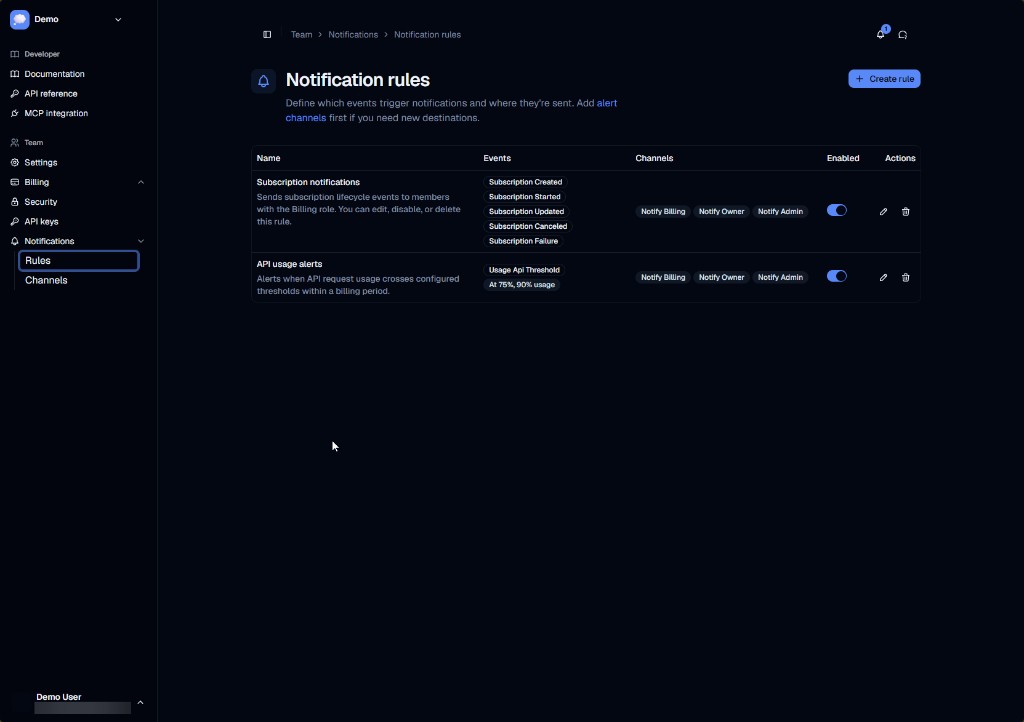
Notification rules table with subscription and API usage rules

How rules work

  1. A rule listens for specific events (for example subscription lifecycle changes) and optional usage thresholds.
  2. When conditions match, the rule delivers through one or more channels attached to the rule.
  3. Use the Enabled toggle to pause delivery without deleting the rule.

Create destinations first if you need new ones — see Notification channels (Team → Notifications → Channels, titled Alert channels in the UI).

Default rules

Teams often ship with built-in rules such as:

  • Subscription notifications — subscription created/started/updated/canceled/failure events
  • API usage alerts — usage threshold events (for example at 75% and 90%)

These commonly target role-based channels such as Notify Billing, Notify Owner, and Notify Admin. You can edit, disable, or delete them when your plan allows.

Create a rule

  1. Open Team → Notifications → Rules.
  2. Choose + Create rule.
  3. Name the rule, select events / thresholds, and attach channels.
  4. Save.

Edit (pencil) or delete (trash) from the Actions column. Some plans restrict creating or editing custom rules; free plans may only allow toggling a default subscription rule.

Free-plan limits

On free billing tiers, custom rule create/edit/delete may be disabled. You can usually still enable or disable the default Subscription notifications rule. Upgrade the team's plan from Billing for full control.

Related articles

  • Notification channels
  • Billing usage
  • Understanding roles